
eSIM Installation Guide (iPhone)

How to Install and Activate Your eSIM on iPhone — Step by Step

Learn how to set up your eSIM on a compatible iPhone quickly and easily. Follow this guide to install your international data plan, activate your mobile connection, and stay online throughout your trip — no physical SIM required.

Before you begin:

      • To use your eSIM, you must first install it and then activate it. Both steps are covered in this guide.
      • Your device must support eSIM technology. You can check all eSIM-compatible devices here.
      • Have your QR code ready on a second screen or printed out so you can scan it with your device’s camera.
      • Your device must be connected to the internet (Wi-Fi) during the eSIM installation.
      • Each QR code can only be installed once.
      • If you delete the installed eSIM, you will not be able to scan the QR code again.

Installation

activar esim iphone v4 1

Install Your Plan

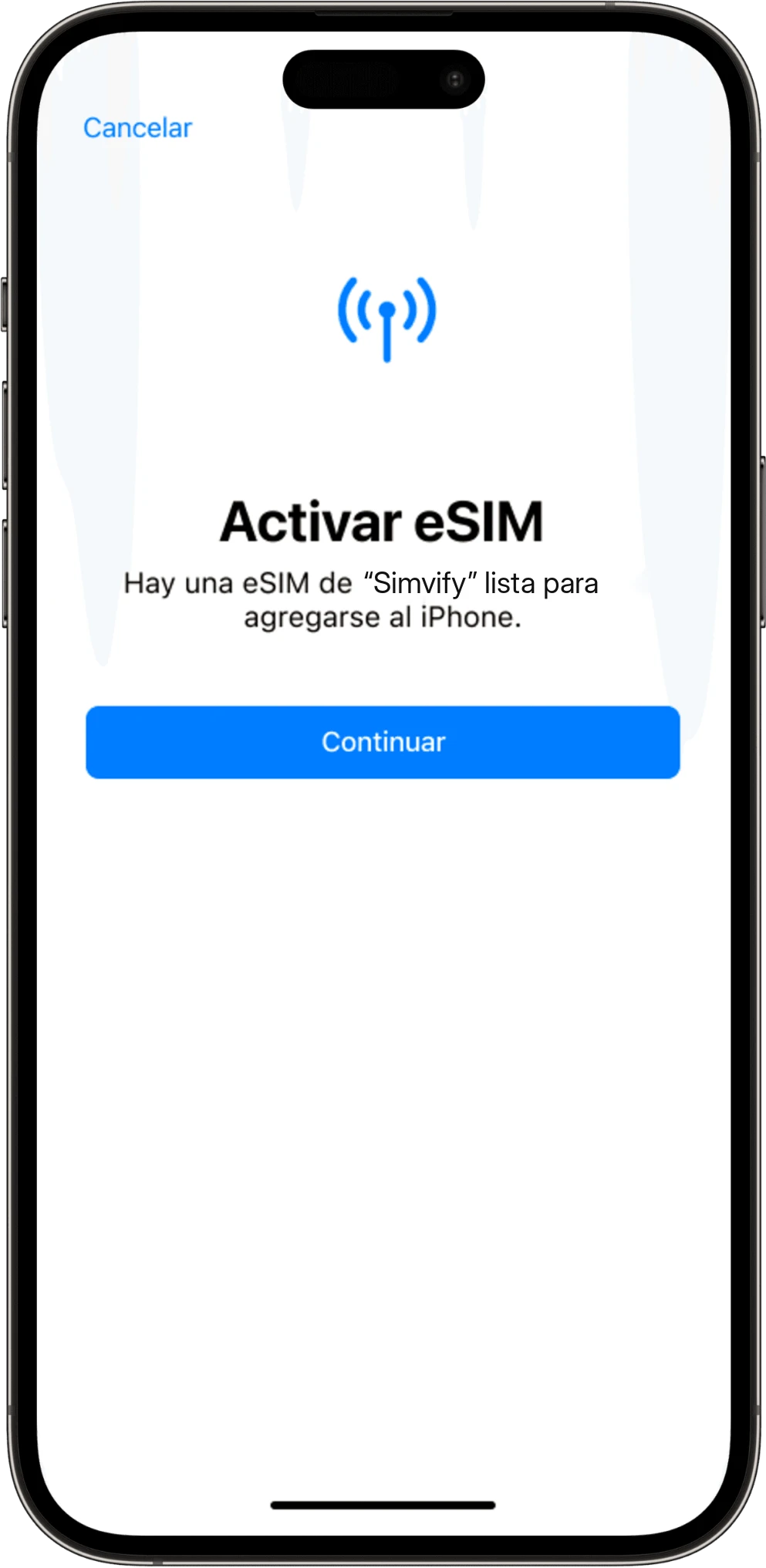
Once you scan the QR code, the eSIM installation process starts automatically. Tap Continue to proceed.
esim instalacion iphone 2 scaled

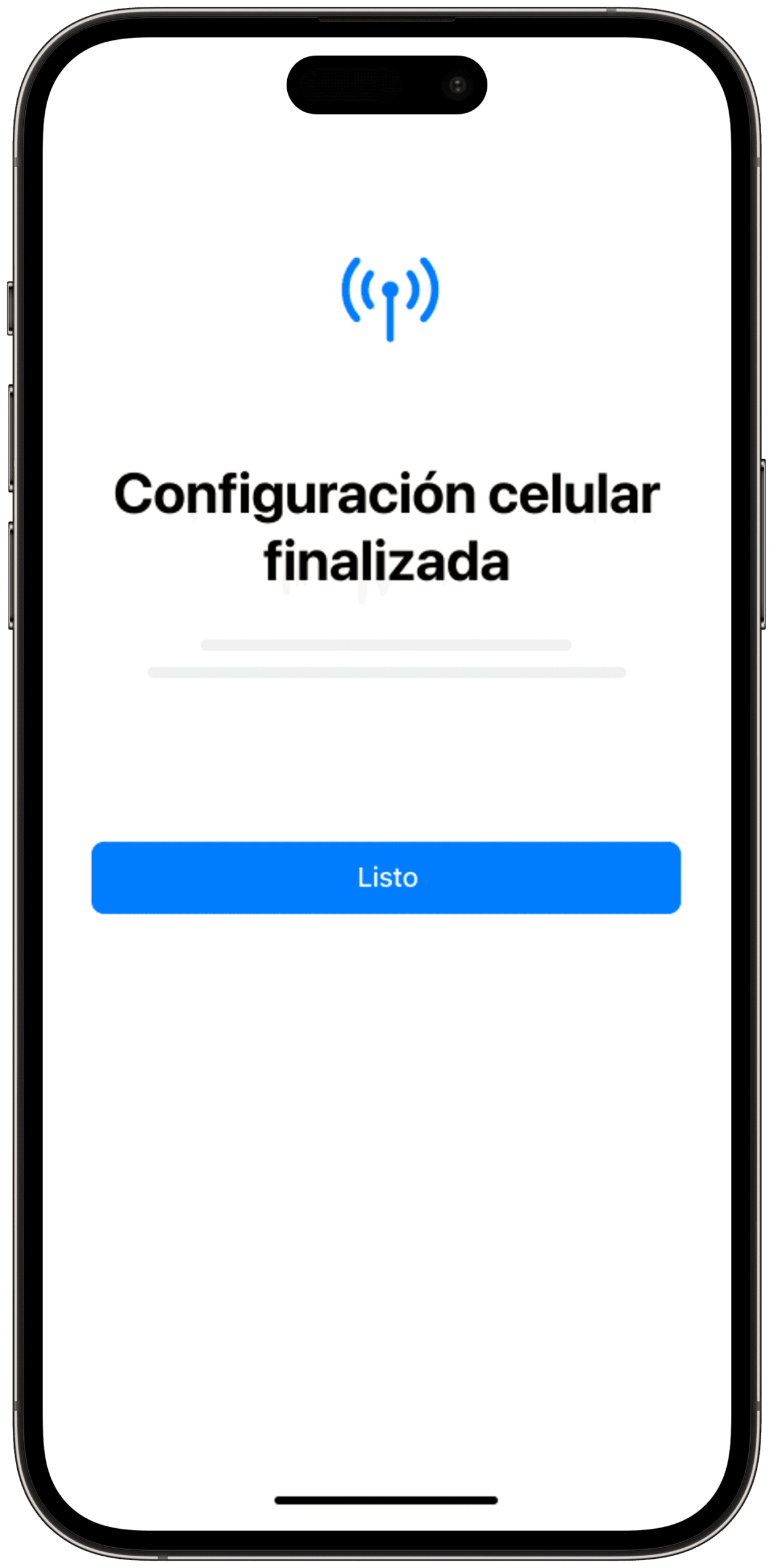
eSIM Successfully Installed

When you see this screen, your eSIM has been installed successfully. Tap Done.
activar esim iphone v4 2

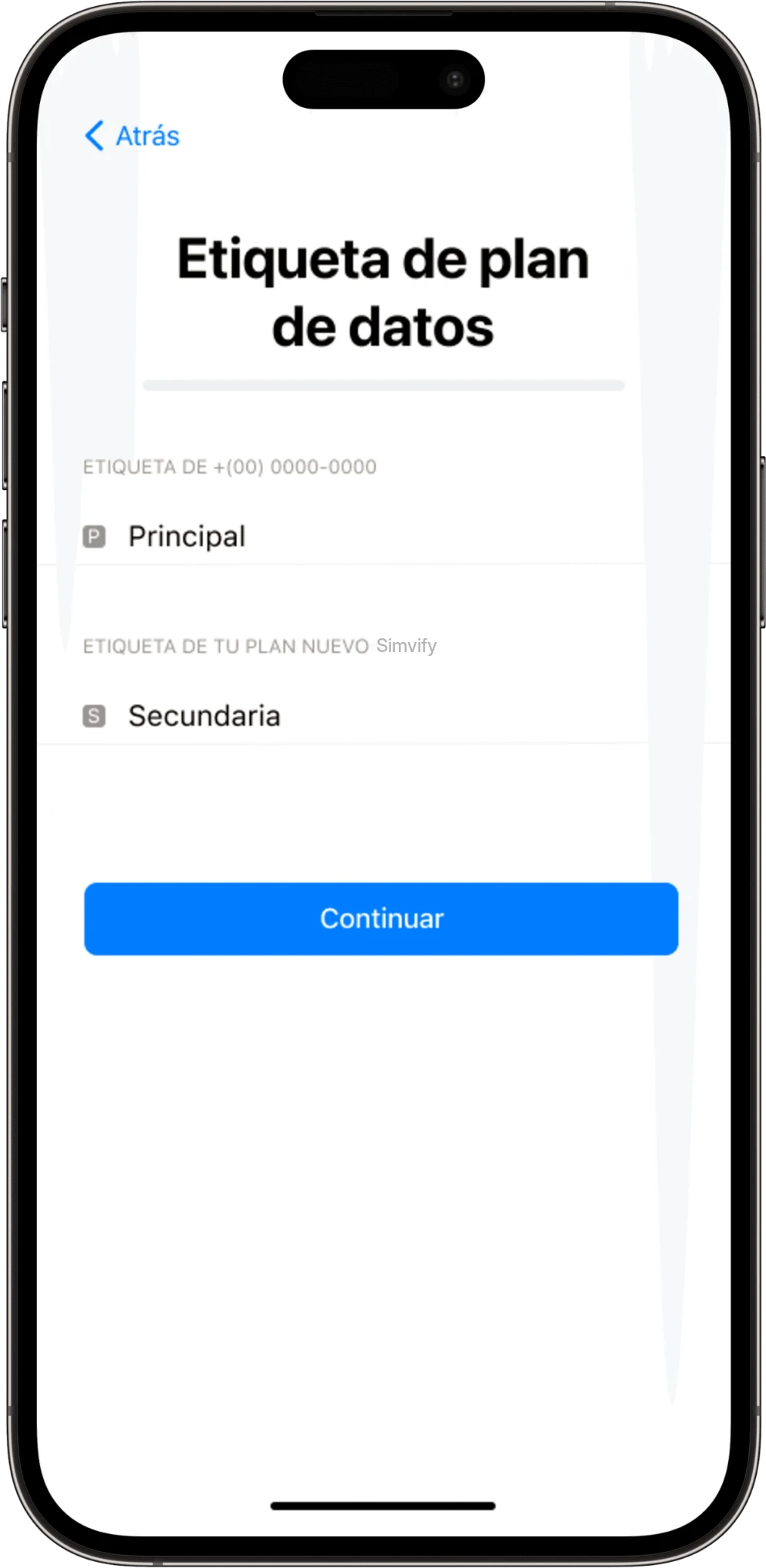
Name Your eSIM

To easily identify your new eSIM, we recommend giving it a unique name — for example, "Simvify Italy". Once you've set the name, tap Continue.
activar esim iphone v4 3

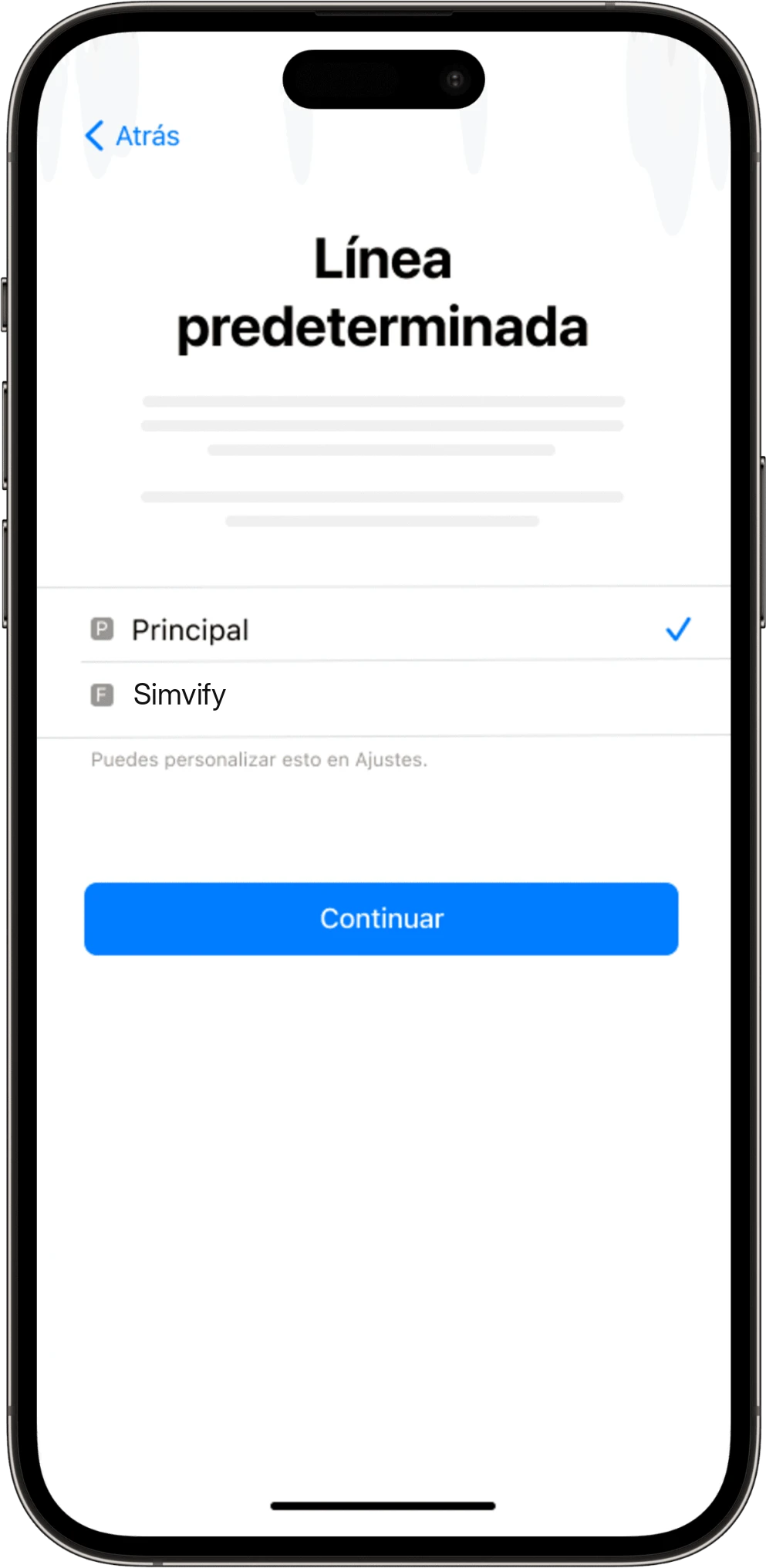
Choose Your Default Line

Select your regular line as your "Default Line" so you can continue using your phone number as usual. Tap Continue.
activar esim iphone v4 4

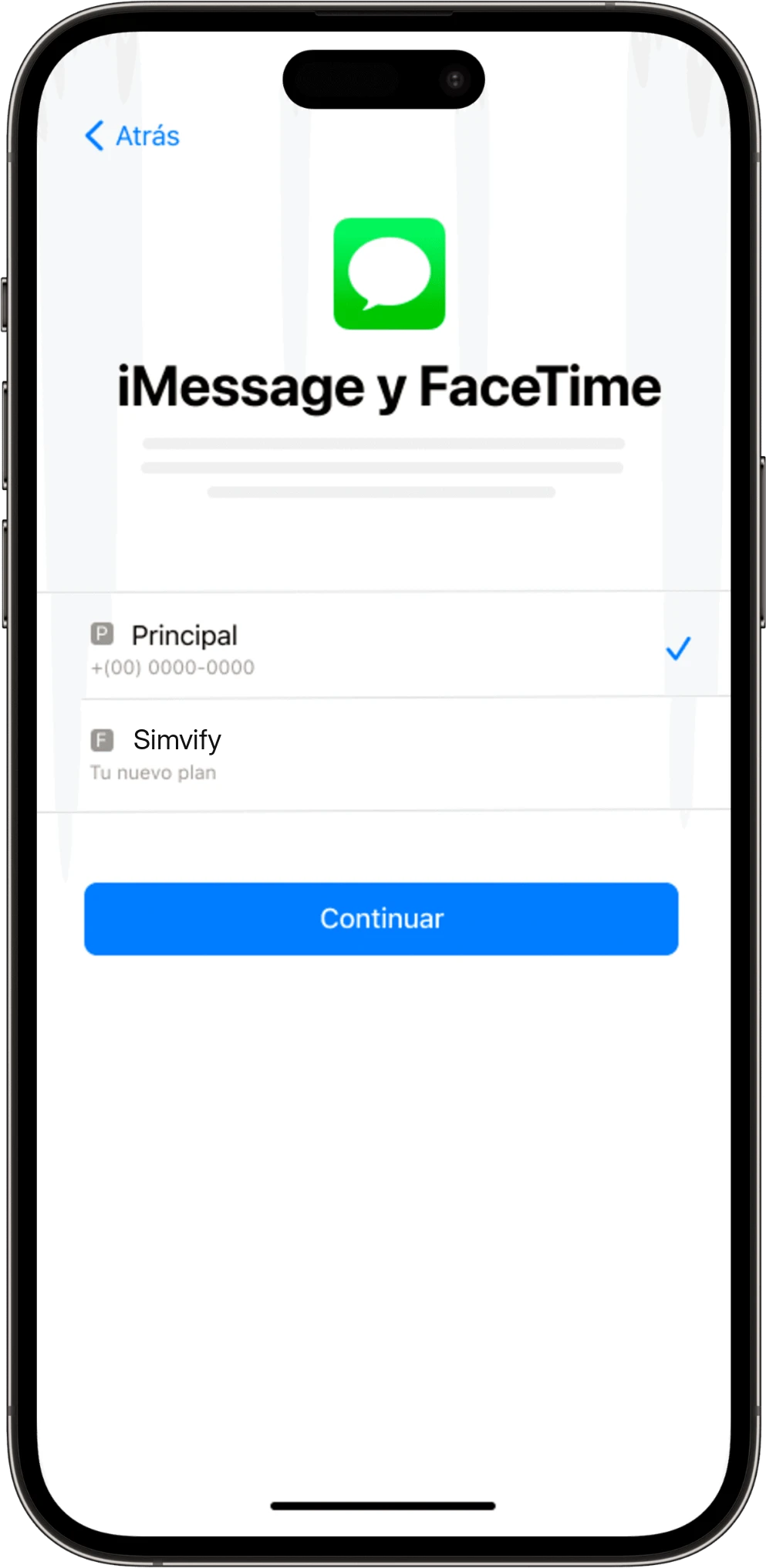
iMessage & FaceTime

Select your regular line for iMessage and FaceTime so your number keeps working normally. Tap Continue.
activar esim iphone v4 5

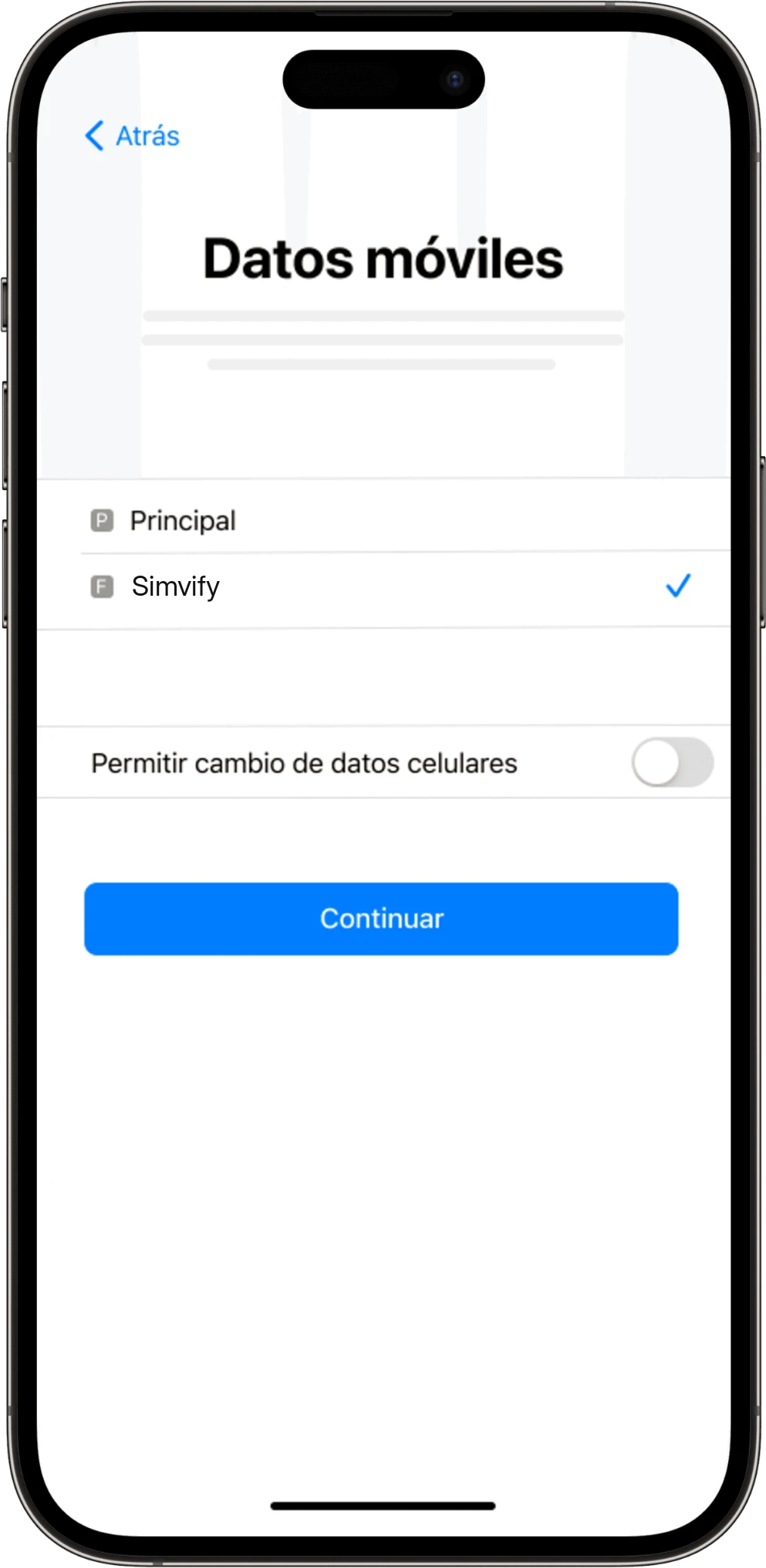
Mobile Data

Set your new eSIM as the default for Mobile Data. Make sure to leave "Allow Cellular Data Switching" turned off to avoid unintended roaming charges on your regular plan. Tap Continue.
activar esim iphone v4 6

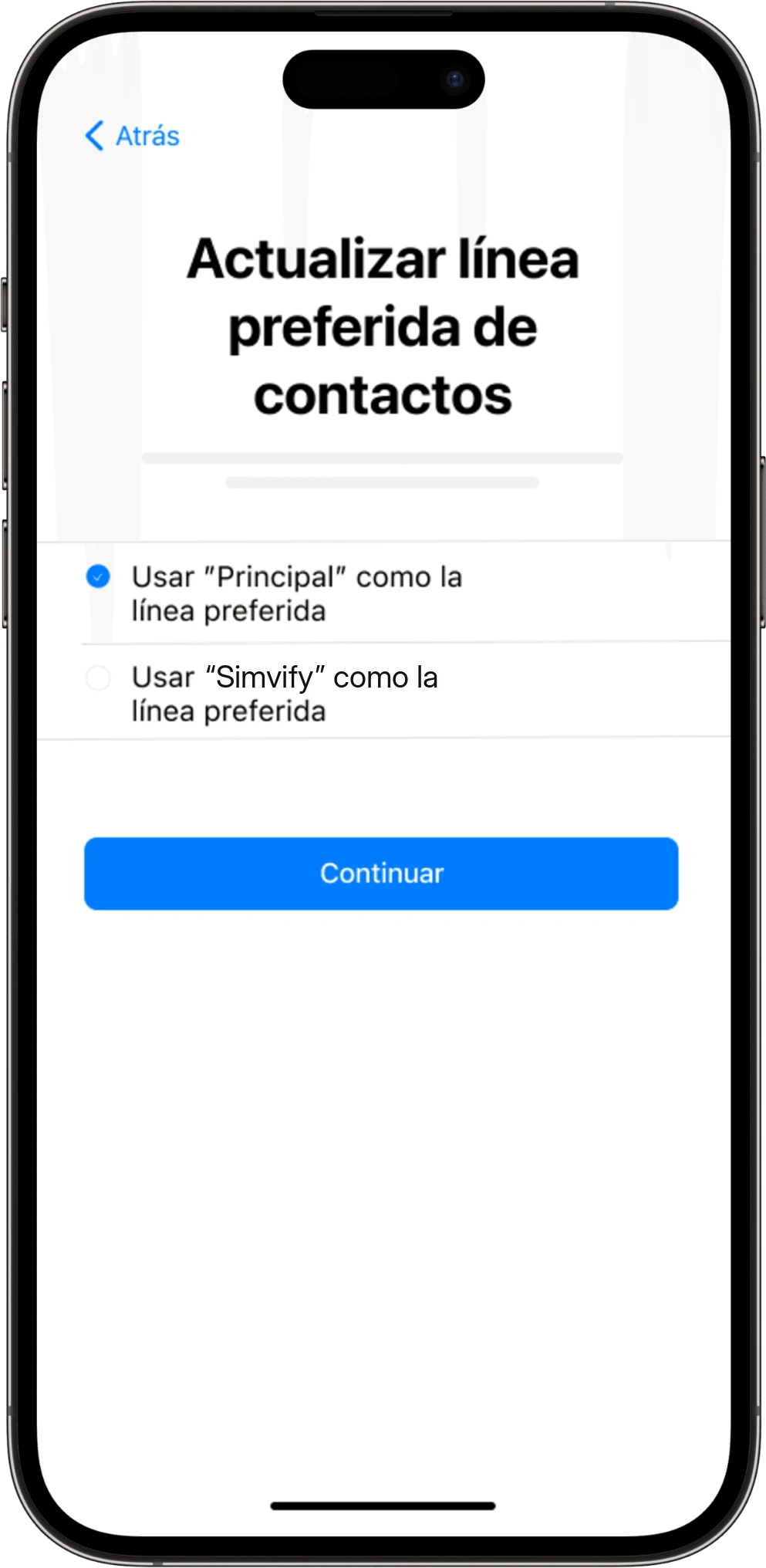
Line for Contacts

Select your regular line to keep your contacts updated. Tap Continue.
Your eSIM Is Now Installed!

Activation

instalacion esim iphone v5 1

Go to Mobile Data

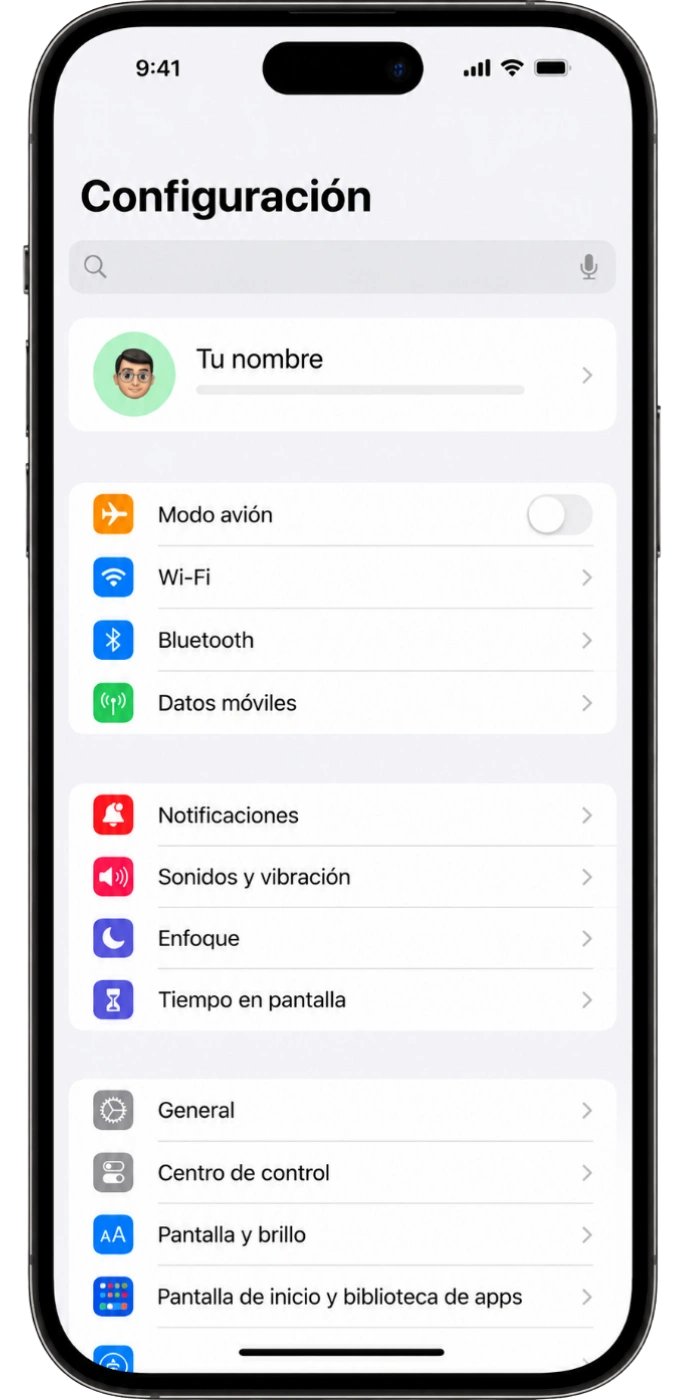
In your iPhone Settings, tap Mobile Data (Cellular).
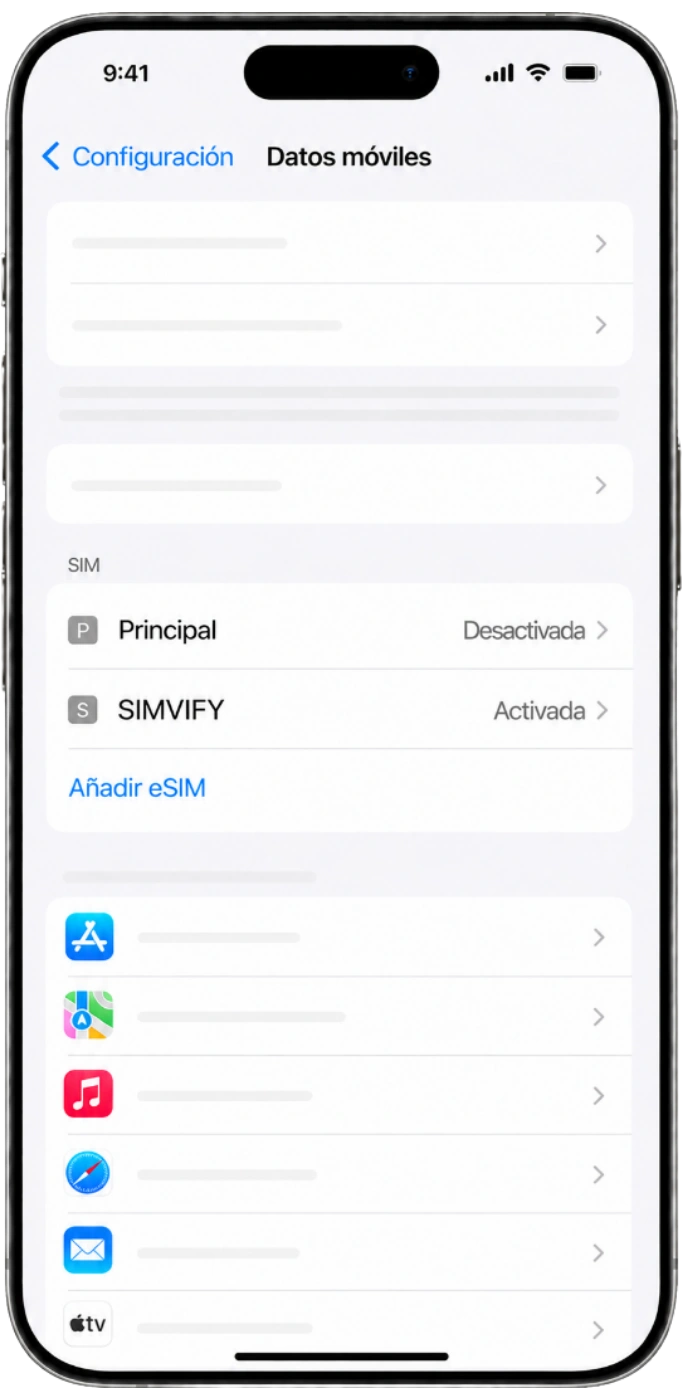
instalacion esim iphone v5 2

Select Your New eSIM

From the list of SIMs or eSIMs, select your new "Simvify" eSIM.
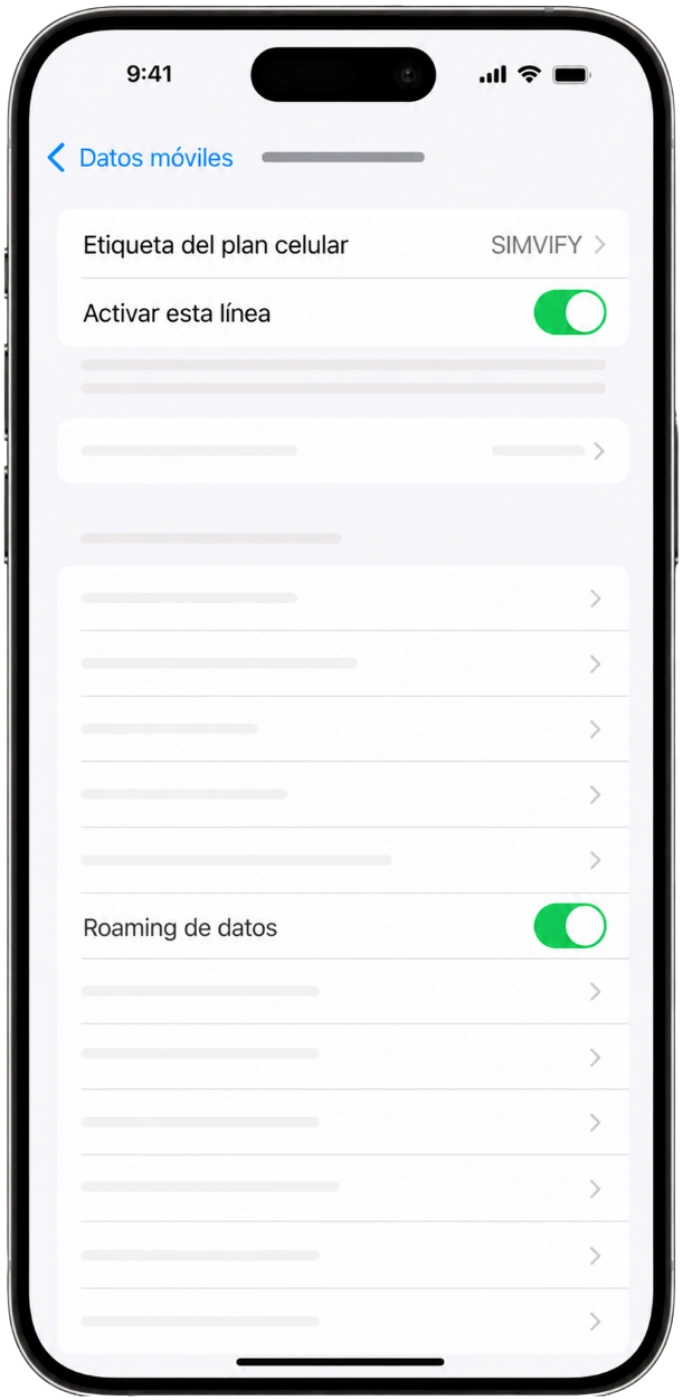
instalacion esim iphone v5 3

Enable eSIM and Data Roaming

Once you've selected your new eSIM, enable the Turn On This Line option. You must also enable Data Roaming for your eSIM to work correctly.

We recommend:

      • Install your eSIM before your trip, and activate it during your flight or once you’ve arrived at your destination.
      • Disable your local carrier line (do NOT delete it) — only keep your SIMVIFY line active.

Your eSIM Is Active and Ready to Go!

Have Questions?

Our FAQ section has the answers you need

What is an eSIM and how does it work on iPhone?

An eSIM is a digital SIM built directly into a compatible iPhone. It lets you activate a mobile data plan without a physical SIM card — ideal for staying connected while traveling internationally.

Are all iPhone models eSIM compatible?

Not all iPhone models support eSIM. Before purchasing, confirm that your device is eSIM-compatible and unlocked for international networks.

Can I use an eSIM and a physical SIM at the same time?

Yes. Many compatible iPhone models support Dual SIM, allowing you to use an eSIM alongside a physical SIM. This lets you keep your main number active while using international data on your trip.

Does the eSIM include a phone number?

Most of our eSIM plans are focused on mobile data. Whether calls, SMS, or a phone number are included will depend on the specific plan you purchase.

How do I buy an eSIM for my iPhone?

Choose your destination, select the right data plan, and complete your purchase on our website. You'll then receive all the instructions needed to install your eSIM on your iPhone.

How and when will I receive my eSIM?

Delivery is fully digital. Once your payment is confirmed, your eSIM and installation instructions will be sent to the email address you provided at checkout.

What do I do if I can't find my eSIM QR code?

Check your inbox, spam, or junk folder. If you still can't find it, contact our support team and we'll verify your purchase and resend the details.

Can I buy an eSIM for someone else?

Yes. You can purchase an eSIM for a family member, colleague, or travel companion — just share the QR code and installation instructions with them.

How do I install the eSIM on my iPhone?

Go to Settings, tap Mobile Data (Cellular), and choose the option to add an eSIM. Then scan the QR code you received and follow the on-screen steps to complete the installation.

When should I install my eSIM?

We recommend installing your eSIM before you travel, using a stable Wi-Fi connection. Plan activation may vary depending on your destination and service terms.

How long does eSIM activation take?

Activation typically takes just a few minutes after installing the eSIM and enabling mobile data on your iPhone.

What happens if I delete my eSIM from my iPhone?

If you delete your eSIM profile, it may not be possible to reinstall it automatically. Contact our support team so we can review your situation and explore available options.

What internet speeds can I expect with my eSIM?

Speeds depend on your destination, local coverage, available carrier, and your iPhone model. In areas with strong coverage, you can expect 4G, LTE, or 5G connectivity.

Can I share internet from my iPhone using my eSIM?

Yes. Many plans support hotspot (Personal Hotspot) sharing from your iPhone. Availability may vary depending on your destination, carrier, or plan type.

How can I check my data usage?

You can check your data consumption in your iPhone's Mobile Data settings, or through any tools included with your plan.

Can I request a refund?

Refund requests are reviewed based on your plan's terms, eSIM usage status, and our current policies. To start a review, please contact our support team.